
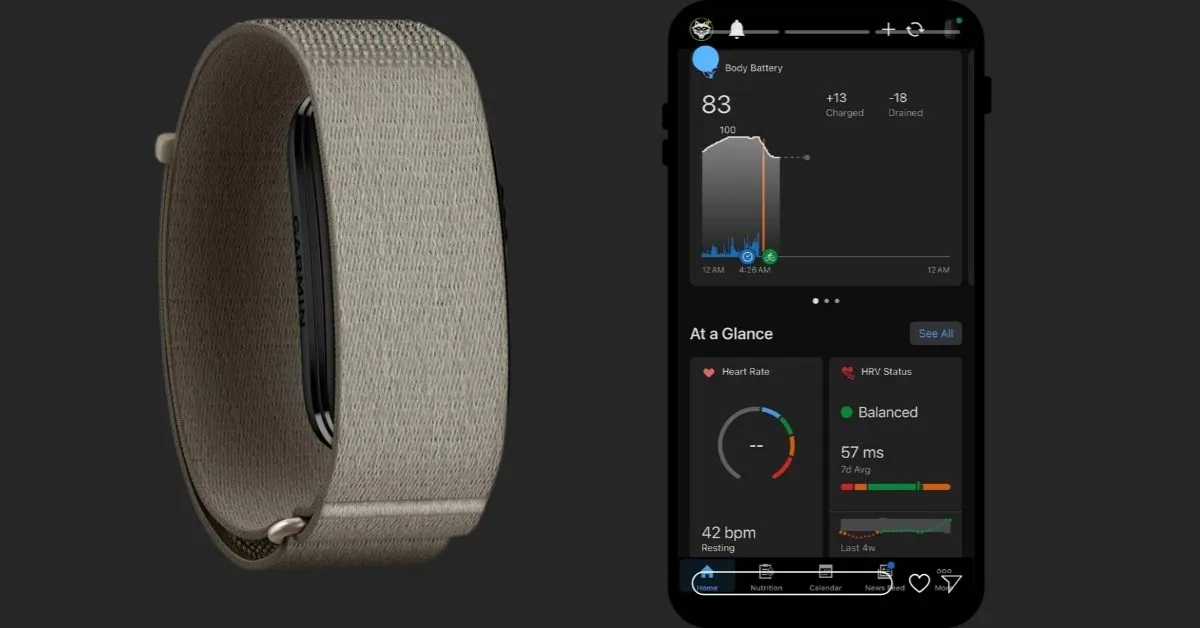
If your CIRQA has stopped sending data to Garmin Connect, you’re not stuck with it. Screen-free bands like CIRQA rely entirely on a clean Bluetooth connection to your phone, so when something interrupts that link, the band keeps recording quietly in the background but nothing shows up in the app. Here’s how to get it talking again, starting with the fixes that solve this most often.
Quick Answer Most CIRQA sync failures come down to one of three things: a stale Bluetooth connection, the Garmin Connect app not running in the background, or a missed firmware update. Force-closing and reopening Garmin Connect, then toggling Bluetooth off and on, resolves the majority of cases in under two minutes. If that doesn’t work, a full re-pair usually does.
Before you do anything else
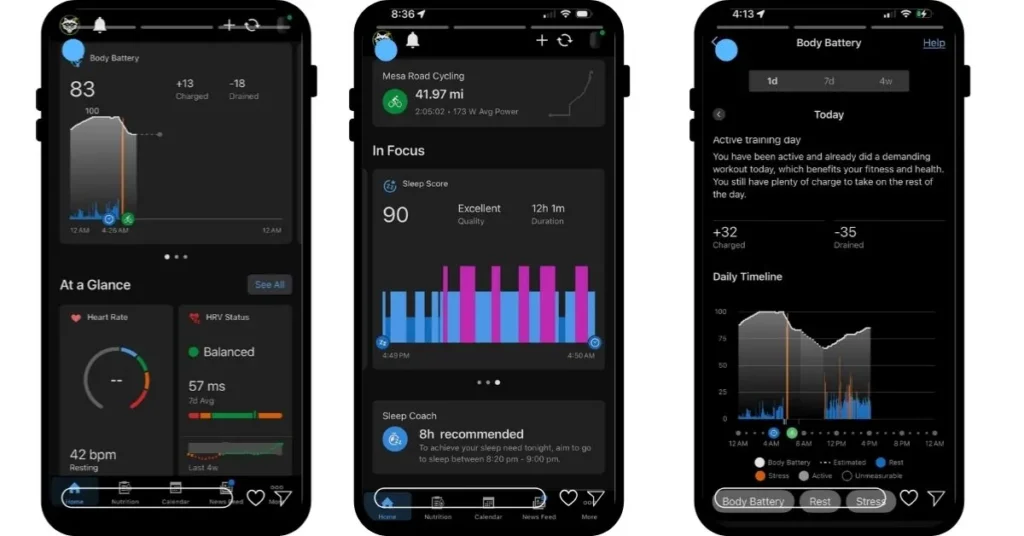
Open Garmin Connect and check the sync icon in the top corner. If it’s spinning and never finishes, that’s different from a sync that fails immediately — the fixes below are ordered to handle both.
Also check the band itself. CIRQA doesn’t have a screen, but a slow-pulsing LED or vibration pattern usually means it’s still tracking normally and just isn’t getting a chance to hand data over to your phone.
If the band feels unresponsive to a firm press-and-hold, that’s a different problem — skip ahead to the restart section.
The most common cause: the optical sensor “falls asleep” after charging
This one deserves its own section because it’s turning out to be the single most reported CIRQA issue in the first few weeks after launch, based on user reports on Reddit’s r/Garmin community. It looks like a sync problem, but it’s actually a sensor problem that just presents itself as missing data.
Here’s the pattern people are running into: you charge the band, the LED shows a full charge, you put it back on — and the optical HR sensor simply doesn’t turn on. Garmin Connect still shows the band as connected and syncing successfully, so nothing looks wrong on the surface.
But no live heart rate shows in the app, and by the next morning you’re missing a sleep score and up to a full day of tracking, because the sensor was never actually recording.
The fix that’s worked for multiple people experiencing this: power the band off from within Garmin Connect (not just the button), then turn it back on with a press-and-hold on the band itself.
That forces the optical sensor to restart properly. Simply leaving it on the charger longer, or toggling Bluetooth, does not fix this particular issue — it has to be a full power cycle through the app first.
If it happens repeatedly, Garmin Support’s current suggestion is to toggle the heart rate sensor off and back on from Health & Wellness Settings inside the app, rather than power-cycling the whole band each time.
Whether this gets fixed permanently in a firmware update remains to be seen — worth checking your CIRQA’s firmware version if this keeps recurring (see the firmware step further down).
If you have another Garmin watch, check which device is set as primary
If you regularly wear a Garmin watch alongside CIRQA — for cycling, running, or any GPS activity — Garmin Connect will pull heart rate from whichever device is currently set as your primary wearable, not necessarily CIRQA.
If your watch is powered on and in range, the app can quietly default to it, and CIRQA’s own HR data simply won’t populate even though the band is tracking fine.
The current workaround is manual: power off your other Garmin watch when you want CIRQA to be the one feeding data to the app. There’s no automatic switching yet, so if you’re using two Garmin devices, this is worth checking before assuming CIRQA itself is broken.
One more edge case: battery died mid-use
A small number of users have reported that if CIRQA’s battery runs all the way down rather than being charged proactively, the band can become difficult to reconnect afterward — beyond what a normal low-battery restart would cause.
If this happens to you, a full charge of at least 30 minutes followed by the re-pair steps further down is the most reliable fix reported so far.
If sync issues started right after you noticed faster battery drain, check our CIRQA battery troubleshooting guide — a few settings overlap between the two problems.
Beyond that: general sync troubleshooting
If your issue doesn’t match the sensor-sleep pattern above, work through these in order.
1. Force-close and reopen Garmin Connect
This fixes the connection more often than anything else on this list, because the app sometimes stays “open” in the background without actually holding the Bluetooth session active.
- iPhone: swipe up from the bottom, hold, then swipe Garmin Connect away
- Android: open recent apps and swipe Garmin Connect away, or go to Settings > Apps > Garmin Connect > Force Stop
Reopen the app and wait about 30 seconds before checking the sync icon again. Don’t tap sync repeatedly — that can actually interrupt a connection that’s in the process of establishing itself.
2. Toggle Bluetooth off and on
Bluetooth connections between a phone and a low-power band like CIRQA occasionally get stuck in a state where the phone thinks it’s connected but the band disagrees.
Turning Bluetooth off, waiting 10 seconds, then turning it back on forces both sides to renegotiate the connection from scratch.
Do this from your phone’s Control Center or Settings, not from inside Garmin Connect — the app-level Bluetooth toggle doesn’t always reset the underlying radio connection.
3. Check that Garmin Connect has background app permissions
This is the one people skip, and it’s a common cause of “it syncs when I open the app but never on its own.”
- iPhone: Settings > Garmin Connect > make sure Background App Refresh is on
- Android: Settings > Apps > Garmin Connect > Battery > set to Unrestricted (not Optimized or Restricted)
Phones with aggressive battery management — several Android manufacturers are worse about this than others — will silently kill Garmin Connect’s background process to save power, which stops CIRQA from syncing passively even though everything looks fine.
4. Make sure Bluetooth and Location permissions are actually granted
CIRQA uses Bluetooth Low Energy, and on both iOS and Android, BLE scanning for wearables typically requires Location permission to be granted to the app, even though it sounds unrelated.
- iPhone: Settings > Privacy & Security > Bluetooth > confirm Garmin Connect is allowed
- Android: Settings > Apps > Garmin Connect > Permissions > confirm both Nearby Devices and Location are allowed
If Location was denied at some point, or set to “Ask every time,” that alone can silently block the sync handshake.
5. Restart your phone
Sounds basic, but a phone restart clears out any stuck Bluetooth stack processes that toggling alone doesn’t fully reset. This is worth doing before you move on to anything involving the band itself, since it takes less effort than a re-pair.
6. Restart CIRQA
Press and hold the button on the band for about 10 seconds until you feel a vibration pattern indicating a restart. This clears any local sync queue that may have gotten stuck on the band’s side rather than the phone’s side.
7. Check for a pending firmware update
Garmin regularly pushes firmware updates to CIRQA, and in rare cases a band running an older firmware version can have trouble completing a sync handshake with a newer version of the Garmin Connect app.
In Garmin Connect, go to your CIRQA device page and check for an update. If one is available, let it fully install with the band nearby and your phone on charge — interrupting a firmware update is one of the few things that can genuinely require a full re-pair afterward.
If your charging cable itself is unreliable, that can cause the same symptoms as a firmware hiccup. Our Garmin charger cable picks covers options that won’t leave you guessing whether it’s charging.
8. Forget the device and re-pair it
If none of the above worked, this fixes almost everything that’s left. It doesn’t erase your historical data — that’s already stored on Garmin’s servers, not just on the band.
- In Garmin Connect, go to your CIRQA device page, scroll down, and select Remove Device
- Turn Bluetooth off on your phone, wait 10 seconds, turn it back on
- Restart CIRQA using the button press-and-hold
- In Garmin Connect, tap the + icon to add a new device and follow the pairing steps as if setting it up for the first time
9. Check Garmin’s server status
Occasionally the delay isn’t your phone or the band at all — it’s Garmin’s backend. If CIRQA appears connected in the app but your data (sleep, HRV, Body Battery) isn’t updating, check whether other Garmin services are also lagging before assuming it’s a device problem on your end.
If nothing above works
At this point it’s worth ruling out a hardware issue rather than a software one. If the band’s LED doesn’t respond at all to a press-and-hold, or if it’s been sitting off the charger for an unusually long time, put it on the charger for at least 30 minutes before troubleshooting further — a critically low battery can prevent the band from maintaining a stable Bluetooth connection even though it appears to be on.
If it still won’t sync after a full re-pair and a charge, that’s a case for Garmin support rather than something to keep troubleshooting solo.
If you’re still deciding whether CIRQA is worth the hassle, our full CIRQA review covers what it does well beyond these early bugs.
FAQ – Why is my garmin cirqa not syncing
Why did my CIRQA stop showing heart rate even though it says it’s synced?
This is almost always the optical sensor “falling asleep” after a charge, not an actual sync failure — see the dedicated section above. Power the band off through the app and back on with the button to reset the sensor.
Why is CIRQA not showing my heart rate when I also wear a Garmin watch?
Garmin Connect pulls HR from whichever device is currently set as your primary wearable. If your watch is on and in range, it can take priority over CIRQA. Power off the other device if you want CIRQA’s data to show instead.
Why does CIRQA say “last synced” from hours ago even though I’m wearing it?
This almost always means the background sync isn’t running, not that the band stopped recording. Check background app permissions (step 3) first — it’s the most common cause.
Do I lose data if I have to re-pair CIRQA?
No. Data already synced to Garmin Connect stays in your account. Re-pairing only affects the connection between the band and your phone going forward.
Does CIRQA need to be near my phone constantly to track properly?
No — it stores data locally and syncs in bursts whenever it’s near your phone with Bluetooth active. It doesn’t need a constant live connection, which is why intermittent sync issues aren’t usually a sign it stopped tracking.
Can I use CIRQA with a new phone without losing history?
Yes. Sign in to the same Garmin Connect account on the new phone, and your historical data carries over. You’ll still need to pair the band to the new phone as a device.
Related reading:
- Is Garmin CIRQA Worth It for Non-Athletes?
- Garmin CIRQA vs Whoop 5
- Garmin CIRQA vs Fitbit A
- Garmin CIRQA Smart Ring Leak: A Filing Appeared, Then Someone Deleted It
- Garmin CIRQA: Official Price, Specs & Where to Buy (2026)