
If you’ve ever watched your Fitbit battery percentage drop for no obvious reason — or asked yourself “Why is my Fitbit dying so fast?” — you’re not alone.
Whether you own a Fitbit Charge 6, Versa 4, Inspire 3, Sense 2, or Luxe, rapid battery drain is one of the most common complaints Fitbit users report. And the frustrating part? Fitbit doesn’t always tell you why it’s happening.
The good news: most cases of Fitbit battery drain are completely fixable without spending a dime.
In this guide, I’ll walk you through exactly what’s draining your Fitbit battery — and give you 10 real fixes that work across all major models.
Why Is Your Fitbit Battery Draining So Fast? (Quick Answer)
Before jumping into fixes, here’s what’s most likely eating your battery:
- ⚡ Always-On Display or high screen brightness left on
- ⚡ Continuous heart rate monitoring running 24/7
- ⚡ Built-in GPS active outside of workouts
- ⚡ Too many app notifications syncing constantly
- ⚡ All-Day Sync running in the background
- ⚡ Firmware bugs after a recent software update
- ⚡ Battery aging after 1–2 years of use
- ⚡ Faulty or third-party charging cable
Now let’s fix each one.
10 Fixes for Fitbit Battery Draining Fast
Fix 1: Cut Down on Notifications
We live in a connected world — and many of us have our Fitbit synced to every app, message, email, and alert on our phone.
But every single notification wakes up your device, lights up the screen, and triggers a vibration. If your Fitbit buzzes every time your phone does, those tiny wake-ups stack up fast.
On models like the Fitbit Versa 4, this alone can explain why your battery drains so quickly.
I noticed my Fitbit Versa 2 battery life dropped to less than two days. After investigating, I realized it was syncing with five apps — emails, texts, calendar invites, and even Slack messages.
After trimming notifications down to only texts and calendar reminders, I went from charging every 48 hours to every 5 days.
This one change alone can dramatically improve battery life.
How to reduce notification drain:
- Open the Fitbit app on your phone
- Tap your profile picture → select your device
- Tap Notifications
- Turn off everything except calls and texts
- Disable emails, social media, and news alerts entirely
If your Fitbit is not holding a charge and you get a lot of phone notifications, start here first.
Fix 2: Turn Off Always-On Display and Reduce Screen Brightness
Fitbit screens are beautiful — but they’re also the single biggest battery drain on any Fitbit device. If you have Always-On Display enabled or screen brightness cranked up, that’s almost certainly contributing to your battery problem.
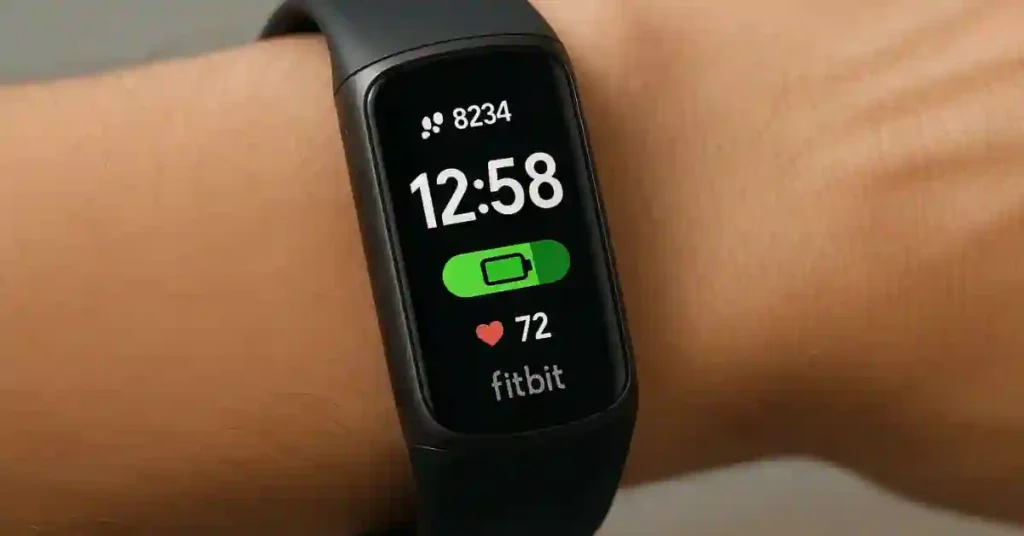
When I first got my Fitbit Charge 5, I loved showing off the crisp display — until I noticed the battery was draining fast.
I’d wake up to find half the battery gone even without exercising or actively checking the screen. After checking settings, I found brightness was on maximum and the screen was set to stay on all day.
Turning down the brightness and switching from Always-On to “raise-to-wake” gave me back three extra days of battery life. This tip alone reverses most cases of fast Fitbit battery drain.
How to turn off Always-On Display:
- Open the Fitbit app
- Tap your profile → select your device
- Go to Clock Face settings
- Toggle off Always-On Display
Pro tip: Use “Raise to Wake” instead — your screen only activates when you lift your wrist. You still see the time whenever you want, without draining battery when your wrist is down.
| Display Setting | Battery Impact |
|---|---|
| Always-On Display ON | Drains battery all day — even while sleeping |
| Raise to Wake | Activates only when needed ✅ |
| Manual button press | Best battery life option |
Fix 3: Disable GPS When Not Exercising
GPS is fantastic when you’re running or cycling — but leaving it active all the time is a silent battery killer. Fitbit models with built-in GPS like the Charge 6, Charge 5, Sense 2, and Versa 3 are especially vulnerable.
When I first started running with my Fitbit, I didn’t realize GPS stayed active long after the workout ended. My Fitbit Charge 4 was losing charge quickly, and it took some digging to find out why — GPS was draining the battery even while I was sitting at my desk.
Switching to “Phone GPS” instead of “Built-in GPS,” and only enabling it during workouts, took my battery from barely two days to nearly five. That’s a huge win.
How to manage GPS:
- Open the Fitbit app
- Go to your device settings → Exercise
- Set GPS to “Phone GPS” for everyday use
- Only switch to “Built-in GPS” when actively working out
Using your phone’s GPS instead of the built-in GPS can extend battery life by 30–40% during tracked workouts.
Fix 4: Switch Heart Rate Monitoring to “Auto” and Turn Off All-Day Sync
Fitbit tracks everything — steps, heart rate, sleep patterns. But all those live updates come at a cost. Continuous heart rate monitoring and All-Day Sync mean your device is working non-stop, even when you’re not.
I experienced this with my Fitbit Inspire 2. The Fitbit wasn’t holding a charge even though I wasn’t using it intensively.
Both All-Day Sync and 24/7 heart rate tracking were on by default. Switching heart rate to “Auto” and turning off All-Day Sync made a noticeable difference immediately.
How to change it:
- Open the Fitbit app → device settings
- Tap Heart Rate → switch from “On” to “Auto”
- Go to Sync settings → turn off All-Day Sync
- Sync manually once a day instead
| Heart Rate Setting | Battery Impact | Best For |
|---|---|---|
| On | High drain — 24/7 monitoring | Medical tracking only |
| Auto | Balanced — monitors when needed ✅ | Most users |
| Off | Best battery — workout-only | Battery-first users |
Don’t worry — syncing manually once a day keeps your stats accurate without the constant background drain.
Fix 5: Update Your Fitbit Firmware
Outdated firmware is a surprisingly common cause of battery drain. Fitbit regularly releases updates that fix battery bugs — but your device has to actually download and install them.
After skipping updates for two months on my Fitbit Charge 5, the battery drain got so bad it wouldn’t last even 12 hours. I finally updated the firmware, and the issue disappeared. The update addressed a known bug that was keeping the screen active too long. Battery life jumped from under a day back to nearly 5 days.
How to update:
- Open the Fitbit app
- Tap your profile → select your device
- Look for a pink update banner at the top
- Tap Update and keep your Fitbit near your phone
Important: After a firmware update, it’s normal for battery to drain faster for 24–48 hours while the device recalibrates. Wait 2 full days before judging battery performance post-update.
If you’re searching “Fitbit battery life after update,” this temporary drain is expected — it usually resolves on its own within 2 days.
Fix 6: Watch Your Charging Habits and Accessory Quality
How you charge your Fitbit can make or break your battery’s long-term health. Using a third-party charger or random USB port can cause inconsistent charging current — which leads to battery problems over time.
I bought a knockoff charging cable for my Fitbit Charge 5, thinking it would be just as good. It wasn’t. The device got hot while charging, and soon after, the battery was draining fast. Switching back to the official Fitbit charger solved it. Saving $5 on accessories cost a lot more in the long run.
Best charging practices:
- ✅ Use official Fitbit chargers only
- ✅ Charge between 20% and 80% for battery longevity
- ✅ Unplug promptly after reaching 100% — don’t charge overnight
- ❌ Avoid USB ports on old laptops, power strips, or cars
- ❌ Avoid third-party or knockoff cables
Signs your charger is the problem: Battery drops from “100%” to 50% within just a few hours, or charging takes noticeably longer than it used to. Clean the metal charging contacts on your Fitbit with a dry toothbrush — debris buildup prevents a clean connection.
Fix 7: Restart Your Fitbit
A restart clears frozen background processes and temporary software glitches — both of which can cause abnormal battery drain. This is especially effective if your battery drain started suddenly with no obvious cause.
Make restarting a weekly habit — it genuinely helps with long-term battery performance, just like restarting a phone that’s been running slow.
How to restart by model:
| Model | How to Restart |
|---|---|
| Fitbit Charge 6 | Hold button 8 seconds → smiley face appears |
| Fitbit Versa 4 | Hold button 10 seconds |
| Fitbit Sense 2 | Hold button 10 seconds |
| Fitbit Inspire 3 | Hold button 5 seconds |
| Fitbit Luxe | Hold button 8 seconds |
Fix 8: When Updates Make Things Worse
Software updates are usually good — but sometimes a firmware update meant to fix one problem creates another. If your Fitbit battery life suddenly got worse right after an update, you’re not imagining it.
I saw this with my Fitbit Luxe. After an update that added new sleep-tracking features, the battery was dying within a day.
I’d turned off GPS, limited notifications, dimmed the screen — still draining fast. A quick check on Fitbit’s community forums confirmed I wasn’t alone. A follow-up patch fixed it within 2 weeks.
What to do while waiting for a patch:
- Do a soft restart (turn the device off and back on)
- Manually reduce any new features the update may have enabled by default
- Report the issue via the Fitbit app to increase visibility with Fitbit’s engineering team
- Sync less often and charge more frequently until the fix rolls out
If you’re seeing “Fitbit Charge 5 battery draining fast” or similar searches right after an update — it’s almost certainly a temporary software issue, not a dying battery.
Fix 9: Clean Your Charging Contacts
Sometimes the battery isn’t draining faster — it’s simply not charging fully in the first place. A dirty or corroded charging contact means your Fitbit never reaches 100%, so it appears to “drain fast” when it was never actually full.
How to clean and check:
- Look at the metal charging pins on the back of your Fitbit
- Clean them gently with a dry, soft toothbrush — remove any debris
- Check your charging cable for bent pins or visible damage
- Try a different USB port to rule out power supply issues
- Make sure the Fitbit sits properly on the charger — the connection should feel snug
This is one of the most overlooked fixes — and it costs nothing.
Fix 10: Accept Battery Aging — And Know Your Options
If your Fitbit is 2+ years old and none of the above has worked, the battery itself may simply be reaching the end of its lifespan.
Lithium-ion batteries degrade naturally over time. After 300–500 full charge cycles, they hold significantly less charge than when new. This is normal battery chemistry — not a defect.
Signs your battery is aging:
- Dying within a day even with all settings optimized
- Shutting off unexpectedly at 15–20% remaining
- Takes noticeably longer to charge than before
- Swelling visible on the back of the device (contact Fitbit support immediately if you see this)
Your options:
- Apply all battery-saving tips from this guide to extend usable life
- Contact Fitbit Support — if under warranty, they may replace it free of charge
- Upgrade your device — newer models like Charge 6 and Inspire 3 have significantly better battery efficiency than older generations
A friend had a Fitbit Inspire 3 that never lasted more than a day, even fresh out of the box. She assumed it was her usage habits — but it turned out to be a battery calibration flaw. Fitbit replaced the unit after a quick diagnostic.
If your Fitbit won’t charge or turn on, or shuts off unexpectedly at higher battery percentages — those are red flags worth reporting to support.
Fitbit Battery Life by Model — What’s Normal in 2026
| Model | Rated Battery Life | Realistic With Normal Use | With Heavy Use (GPS + AOD) |
|---|---|---|---|
| Fitbit Inspire 3 | Up to 10 days | 6–8 days | 4–5 days |
| Fitbit Charge 6 | Up to 7 days | 4–5 days | 2–3 days |
| Fitbit Versa 4 | Up to 6 days | 4–5 days | 2–3 days |
| Fitbit Sense 2 | Up to 6 days | 3–4 days | 2–3 days |
| Fitbit Luxe | Up to 5 days | 3–4 days | 1–2 days |
If your device is falling significantly below the “normal use” column — even with light usage — something is actively draining it and the fixes above should resolve it.
Quick Battery-Saving Checklist
Run through this before giving up on your Fitbit:
- Notifications → Reduced to calls and texts only
- Always-On Display → OFF
- Screen brightness → Reduced
- Heart Rate Monitoring → Auto
- GPS → Phone GPS (not built-in) when not exercising
- All-Day Sync → OFF — sync manually
- Firmware → Updated to latest version
- Device → Restarted this week
- Charging contacts → Cleaned
- Charging cable → Official Fitbit cable only
If you’ve checked every box and battery still dies within a day — your battery is likely aging and it may be time to contact Fitbit support or upgrade.
Frequently Asked Questions
Why did my Fitbit battery suddenly start draining fast?
Sudden battery drain is most often caused by a firmware update introducing a background bug, or Always-On Display being accidentally turned on. Start by restarting your device — this resolves the issue in many cases without any further action needed.
How long should a Fitbit battery last on a full charge?
Depending on the model: Inspire 3 lasts up to 10 days; Charge 6, Versa 4, and Sense 2 last up to 6–7 days; Luxe lasts up to 5 days. If yours is consistently dying in under 2 days with moderate use, something is draining it abnormally.
Why is my Fitbit Charge 6 battery draining fast?
Charge 6 battery drain is most often caused by Always-On Display, continuous heart rate monitoring, or built-in GPS being active outside of workouts. Apply Fix 2, Fix 3, and Fix 4 from this guide — most Charge 6 users see significant improvement immediately.
Why is my Fitbit Inspire 3 battery draining fast?
Inspire 3 has the longest rated battery life of any current Fitbit — up to 10 days. If yours is draining fast, it’s almost always the Always-On Display or continuous heart rate setting. Disable AOD first and monitor battery improvement over 24 hours.
Why is my Fitbit Sense 2 battery draining fast?
Sense 2 includes advanced sensors including ECG and continuous skin temperature tracking. If these are running constantly, battery drain increases significantly. Check your advanced health monitoring settings in the Fitbit app and disable sensors you don’t actively need.
Can I replace a Fitbit battery myself?
Fitbit batteries are not user-replaceable — the devices are sealed units. Attempting to open one voids your warranty. If your battery is genuinely degraded and you’re under warranty, contact Fitbit support for a possible replacement.
Does Bluetooth drain Fitbit battery?
Yes, moderately. Turning off All-Day Sync in the Fitbit app (so it only syncs when you open the app) reduces the Bluetooth drain without affecting your health data.
How long does a Fitbit battery last before it needs replacing?
Most Fitbit batteries last 1–3 years depending on usage and charging habits. After 300–500 full charge cycles, noticeable degradation is normal. Avoiding overnight charging and keeping the battery between 20–80% can significantly extend lifespan.
The Bottom Line
A Fitbit battery draining fast is almost always fixable — and it rarely requires spending money.
Start here: Cut down notifications, turn off Always-On Display, and restart your device. These three steps alone resolve the issue for the majority of Fitbit users.
If those don’t work, go through the full checklist — update firmware, clean charging contacts, switch heart rate to Auto, and disable GPS outside workouts.
And if your device is 2+ years old and nothing helps, the battery has likely reached the end of its natural lifespan. At that point, upgrading to a current model like the Inspire 3 or Charge 6 is the most practical solution — both offer significantly better battery life than older generations.
Still having issues with your specific model? Drop your question in the comments — I’ll help you troubleshoot it directly.
Written by Sunil Bhatt — Wearable Technology Reviewer, SmartWatchInsight.com Last Updated: May 2026 Sources: Fitbit Community Forums, Fitbit Official Support Documentation, verified user reports