
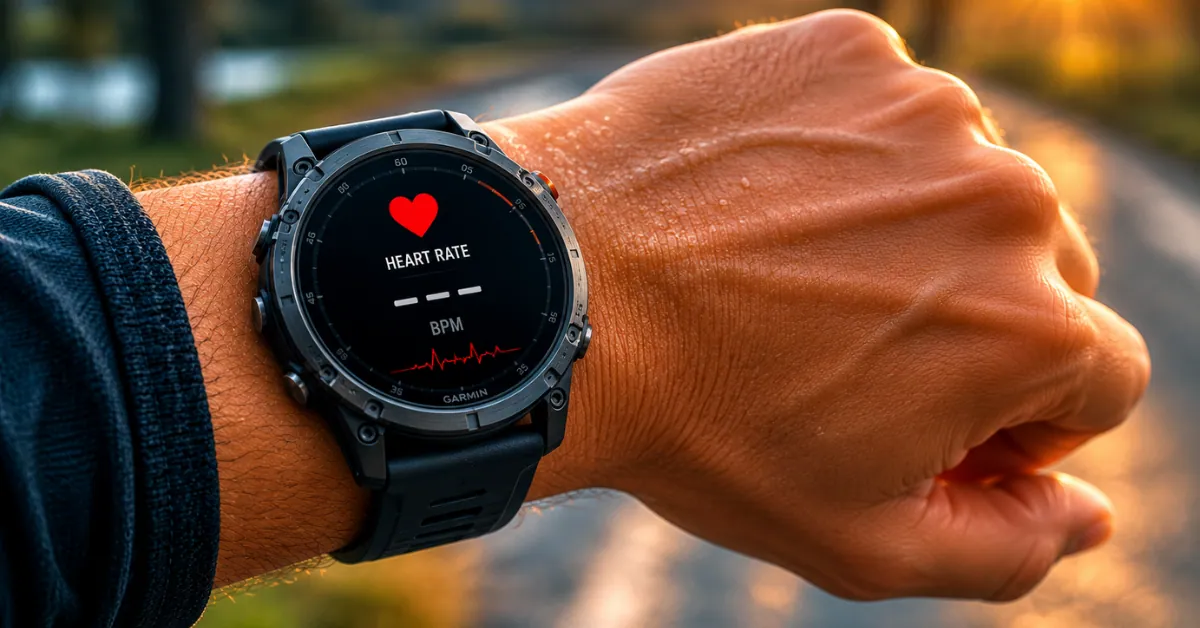
Your Garmin says your heart rate is 165 bpm. Your body says otherwise. Or the sensor just shows dashes and refuses to read anything at all.
Either way — this guide covers every fix in order from quickest to most involved. Most people solve it in under two minutes without touching any settings.
Related Guides on Smartwatch Insight
Using a CIRQA band instead of a watch? The heart rate issue works a little differently there — see our dedicated CIRQA not syncing guide.
First — Which Problem Do You Actually Have?
Garmin heart rate problems fall into two types. Knowing which one you have tells you which fixes to try first.
- Watch shows dashes (—) instead of a number
- HR stays blank even at rest
- No green LEDs visible on the back
- Happened after a factory reset or firmware update
- Numbers are wildly too high or too low
- Jumps erratically during workouts
- Reads fine at rest but goes wrong mid-exercise
- Worse in cold weather
- Worse during high-intensity exercise
Here’s what’s happening inside the sensor either way: Garmin’s optical heart rate monitor shines green LED light into your skin and measures how much bounces back. Blood absorbs green light — so the sensor detects volume changes with each heartbeat. Simple concept, but a few things reliably break it.
Most common root causes:
- Watch worn too loose — sensor loses skin contact
- Wrist HR disabled in settings (happens after resets and updates)
- Dirty or blocked sensor lens
- Outdated firmware with known sensor bugs
- Cold temperatures reducing blood flow at the wrist
- Rapid arm movement during intense exercise (motion artifacts)
- Watch sitting too close to the wrist bone
1. Check That Wrist Heart Rate Is Actually Enabled
This sounds too obvious — but it’s the first thing to check. Firmware updates and factory resets both have a habit of toggling this setting back to off without warning. Check it before anything else.
Steps — Most Models
- Press
Menuon your watch - Go to
Settings → Sensors & Accessories - Find
Wrist Heart Rate - Set it to On or Auto
- Wait 30 seconds — sensor needs a moment to initialize
Location varies slightly by model. Here’s where to find it on current Garmin watches:
| Model | Where to Find Wrist HR Setting |
|---|---|
| Fenix 8 / 8 Pro / 8 Solar | Menu → Settings → Health & Wellness → Wrist HR |
| Forerunner 165 / 265 / 965 / 970 | Menu → Settings → Sensors & Accessories → Wrist HR |
| Venu 3 / 3S | Menu → Settings → Sensors & Accessories → Wrist HR |
| Vivoactive 6 / 5 | Menu → Settings → Sensors & Accessories → Wrist HR |
| Instinct 3 / 2 / Solar | Menu → Settings → Sensors → Wrist Heart Rate |
| Epix Gen 2 / Pro | Menu → Settings → Health & Wellness → Wrist HR |
| Lily 2 / Active | Settings → Health Stats → Heart Rate |
2. Adjust How You’re Wearing the Watch
This is the single most common cause of both no-reading and inaccurate-reading problems. Most people wear their watch slightly too loose and too low on the wrist. Both break sensor contact.
Correct Position
- Place the watch one to two finger-widths above your wrist bone — not on it, not too high up the forearm
- The sensor back should sit flat against your skin with no visible gap
- During workouts, tighten the strap one notch tighter than you’d wear it during the day — movement shifts the watch, and even a 1–2mm gap kills accuracy
- Snug enough that it doesn’t slide when you shake your wrist
- Not so tight that it leaves a mark or cuts circulation
Cold Weather — Different Rules Apply
In cold conditions, blood vessels near the skin surface constrict to preserve core body temperature. Less blood flow at the wrist means the sensor struggles to detect your pulse. Two things help:
- Wear the watch slightly higher on the forearm where blood vessels are larger and closer to the surface
- Cover the watch with a running glove or sleeve — keeping it warm improves sensor contact significantly
Garmin itself has acknowledged cold weather HR accuracy as a known issue and released firmware fixes for it on multiple models including the Forerunner 965 and Forerunner 955. If you’re running in temperatures below 5°C and seeing erratic readings, this is almost certainly the cause — and a chest strap is the only reliable solution in those conditions.
Sit still, hold your arm relaxed at your side, and check the HR reading on the watch face. If it reads normally when you’re completely still but goes wrong during exercise, the issue is motion artifacts or fit — not hardware. If it won’t read at all even at rest, work through fixes 1, 3, and 5 first.
3. Clean the Heart Rate Sensor
Sweat, sunscreen, lotion, and dead skin cells build up on the sensor lens. Even a thin film reduces accuracy — you won’t necessarily see it, but the sensor can’t penetrate it properly. This is especially common if you work out daily or apply sunscreen before outdoor runs.
How to Clean It
- Take the watch off your wrist
- Rinse the back under lukewarm running water
- Use a soft lint-free cloth — cotton works well, no paper towels
- Wipe the sensor lens gently in small circular motions
- Rinse once more and let it air-dry completely before putting it back on
⚠️ What NOT to Use
- No alcohol wipes — can permanently damage the anti-reflective coating on the sensor lens
- No compressed air directly on the sensor
- No abrasive cloths, paper towels, or rough sponges
- No hand sanitizer — same issue as alcohol wipes
If you train every day, clean the sensor once a week minimum. If you sweat heavily or use sunscreen regularly, clean it after every workout. It takes 30 seconds and prevents a lot of accuracy problems over time.
4. Update Your Garmin Firmware
Garmin regularly ships firmware updates that fix heart rate sensor bugs. This isn’t rare — it happens across multiple model lines, and the fix often arrives in a point release rather than a major update.
If your HR issues started after a recent firmware update, there’s likely a patch already available.
Known examples of firmware HR fixes Garmin has shipped: cold weather optical HR performance on the Forerunner 965 and 955, heart rate dynamic source switching bugs on the Forerunner 965 and Fenix 7 causing erratic data in the first 20 minutes of workouts, and activity-specific HR recording issues on the Approach S70.
Update via Garmin Connect App (Easiest)
Steps
- Open Garmin Connect on your phone
- Tap the device icon (top left on Android, top right on iOS)
- Select your watch →
Software Update - Install any available update
- Keep the watch near your phone with Bluetooth on until the update finishes
Update via Garmin Express (More Reliable for Large Updates)
Steps
- Connect your watch to your computer via the charging cable
- Open Garmin Express (download from garmin.com/express if needed)
- Garmin Express detects available updates automatically
- Click Install All and wait for completion
- Safely eject the watch before disconnecting
After updating, wear the watch correctly and test HR during a light walk or easy run. Many persistent accuracy issues — especially ones that started with a specific firmware version — resolve completely after a single update.
If the Update Made It Worse – Garmin’s new heart rate dynamic source switching feature (rolling out on Fenix 7, Forerunner 965, and others) caused erratic HR readings in the first 20 minutes of workouts for some users. If your problem started after a recent update and you use both the watch and an HRM strap, try disabling dynamic source switching:
Settings → Sensors & Accessories → Heart Rate → HR Source Switching → Off
5. Restart the Watch
A restart clears temporary software glitches that build up over time and can interfere with sensor performance. This is different from a factory reset — it wipes nothing, changes nothing, just reboots the system. Worth doing before anything more involved.
How to Restart
- Hold the power/light button for 15 seconds
- Watch powers off completely
- Press the power button once to turn it back on
- Put the watch back on and give it 60 seconds before checking HR
The 60-second wait matters — the sensor needs a moment to re-initialize after a cold boot. Check the HR reading while sitting still with your arm relaxed before assuming it’s still broken.
For model-specific reset instructions, see our full guide: How to Reset Any Garmin Watch
6. Switch to a Chest Strap for High-Intensity Workouts
This isn’t a “fix” in the traditional sense — it’s the right tool for situations where wrist optical HR fundamentally can’t keep up.
During high-intensity exercise, your arms move fast and hard. That motion creates artifacts the optical sensor can’t fully filter — it misreads movement as heartbeats, or loses skin contact entirely. The result is HR readings that jump between 60 and 180 bpm in seconds, which is useless for training.
This is a physics limitation shared by every optical wrist HR monitor on every brand. A Garmin chest strap sends ECG-accurate heart rate to the watch over ANT+ — same signal quality as a medical monitor.
When a Chest Strap Is Worth It
- HIIT and interval training
- Heavy barbell lifting
- High-cadence cycling
- Any workout with rapid, forceful arm movement
- Cold-weather training where wrist blood flow is reduced
- If you have wrist tattoos that interfere with the optical sensor
Pairing a Chest Strap to Your Garmin
Steps
- Go to
Settings → Sensors & Accessories → Add Sensor - Select
Heart Rate - Put on the chest strap and dampen the electrodes
- Follow the pairing prompts
- Once paired, your watch automatically uses strap data when it detects the strap is worn — and falls back to wrist HR when it isn’t
The HRM-Pro Plus is the best all-round option — it stores HR data during swims when Bluetooth is out of range, pairs via ANT+ and Bluetooth, and adds running dynamics. The HRM-Dual is the budget pick if you just need accurate HR without extras. Both work with every current Garmin watch.

7. Check for Individual Fit Issues
A few physical factors can consistently affect how well Garmin’s optical sensor reads your heart rate regardless of how well you wear the watch.
Wrist Tattoos
Dark tattoo ink — particularly black, green, and dark blue — absorbs the same green LED light wavelength the sensor uses to detect your pulse.
The sensor can’t tell the difference between tattoo ink and blood. This causes missing readings or persistently wrong data directly over tattooed skin. It affects every brand’s optical HR sensor equally, not just Garmin.
A chest strap or upper arm optical HRM (like the Garmin HRM-Fit) is the practical solution if you have wrist ink under the sensor.
Skin Tone
Optical HR sensors across all brands perform less consistently on darker skin tones — a well-documented industry-wide problem. Garmin has been working to improve this on newer models, particularly the Fenix 8 and Forerunner 970.
Wearing the watch slightly higher on the forearm where the skin is typically lighter and blood vessels are larger can help. Garmin’s Elevate V5 sensor in newer models shows measurable improvements over V4.
Dense Wrist Hair
Thick wrist hair creates micro-gaps between the sensor and your skin. The watch looks tight but the LEDs aren’t actually in full contact. Wearing it slightly snugger and slightly higher usually resolves this without needing to do anything more drastic.
Very Dry or Callused Skin
Heavily callused or very dry skin reduces light penetration. Regular moisturizing — especially in winter when skin dries out — can genuinely improve optical HR accuracy. Not the first thing people think of, but it makes a difference for some users.
8. Factory Reset (Last Resort)
If you’ve tried everything above and heart rate still isn’t working — especially if the problem started after a firmware update — a factory reset clears any corrupted sensor configuration and starts from scratch. This is a bigger step, so sync your data first.
| Model | How to Factory Reset |
|---|---|
| Fenix 8 / Epix / Forerunner 265 / 965 / 970 | Menu → Settings → System → Reset → Delete Data and Reset Settings |
| Forerunner 165 | Menu → Settings → System → Reset → Delete Data and Reset Settings |
| Venu 3 / Vivoactive 6 | Settings → System → Reset → Delete Data and Reset Settings |
| Instinct 3 / 2 | Menu → Settings → System → Reset → Delete Data and Reset Settings |
| Lily 2 | Settings → System → Reset |
After the reset: reconnect to Garmin Connect, reinstall any firmware updates, set wrist HR back to On, and test HR at rest for 60 seconds before doing anything else. Most post-update sensor bugs clear up completely after a clean reset.
For full step-by-step reset instructions per model: How to Reset Any Garmin Watch — All 2024-2026 Models
When Nothing Works — It Might Be Hardware
If heart rate fails after a factory reset, updated firmware, and correct wear on clean skin — the sensor may be physically damaged. This is uncommon but happens after drops, water damage beyond rated depth, or simply component failure over time.
Signs of Physical Sensor Damage
- Heart rate never reads at all — even sitting completely still with the watch correctly worn
- The green sensor LEDs on the back of the watch don’t light up when you start an activity or enable heart rate
- Problem started immediately after a hard impact or drop
- Problem started after water exposure beyond the watch’s rated depth
- All software fixes have been tried with no change whatsoever
Contact Garmin Support at support.garmin.com. Standard warranty is one year, two years in some regions. Even out-of-warranty Garmin support is worth contacting — they frequently offer repair options at reasonable cost and their support team is generally helpful.
All 8 Fixes — Quick Reference
| Fix | Solves | Time |
|---|---|---|
| Check HR is enabled | Sensor not reading at all | 1 min |
| Adjust watch position and fit | Inaccurate readings, no reading | 1 min |
| Clean the sensor | Gradual accuracy loss | 3 min |
| Update firmware | Post-update bugs, cold weather HR | 10–30 min |
| Restart the watch | Sudden sensor glitches | 2 min |
| Use a chest strap | HIIT, lifting, cold weather inaccuracy | 5 min setup |
| Check individual factors | Tattoos, skin tone, hair, dry skin | Varies |
| Factory reset | Persistent bugs, corrupted settings | 15–25 min |
Frequently Asked Questions
Why is my Garmin heart rate so inaccurate during workouts?
The most likely cause is motion artifacts — fast arm movement during high-intensity exercise creates interference that the optical sensor can’t fully filter out. This shows up as readings that jump wildly or get stuck at an unrealistic number. It’s a physical limitation of all wrist-based optical HR sensors, not a defect. A chest strap eliminates the problem entirely for workout accuracy.
Why does my Garmin show dashes instead of heart rate?
Dashes mean either the sensor has lost contact with your skin, wrist heart rate has been disabled in settings, or there’s a temporary software glitch. Check Settings → Sensors & Accessories → Wrist Heart Rate first. If it’s enabled, try wearing the watch snugger and check the HR reading while sitting completely still. If dashes persist at rest with a proper fit, try a restart.
Does Garmin heart rate work through a sleeve or glove?
No. The optical sensor requires direct skin contact to function. It cannot read heart rate through any fabric, no matter how thin. This includes compression sleeves, glove cuffs, and even thin running tights if the watch somehow ends up over them. Skin contact is non-negotiable for optical HR.
How often does Garmin update heart rate during the day?
During activities with GPS tracking, Garmin samples heart rate every second. In smartwatch mode during daily wear, it samples every few seconds by default. You can set it to sample every minute to extend battery life, or every second for more granular data — found under Health & Wellness → Wrist Heart Rate settings. Every-second sampling gives the most accurate 24-hour data but uses more battery.
Does cold weather affect Garmin heart rate accuracy?
Yes, significantly. Below about 5°C, blood vessels near the skin constrict to protect core body temperature, which reduces blood flow at the wrist and makes the optical sensor’s job much harder. Garmin has released firmware fixes for cold weather HR accuracy on the Forerunner 965 and 955. Wearing the watch slightly higher on the forearm helps. A chest strap is the most reliable solution for cold-weather training.
Can a tattoo on my wrist affect Garmin heart rate?
Yes. Dark tattoo ink — especially black and dark green — absorbs the green LED wavelength that Garmin’s sensor uses. The sensor essentially can’t see through the ink to detect blood volume changes. This causes inaccurate readings or no reading at all over tattooed areas. It affects all optical HR sensors across all brands equally. A chest strap or upper-arm optical HRM is the reliable workaround.
Why did my Garmin heart rate stop working after a firmware update?
Firmware updates occasionally introduce sensor bugs — this is documented across multiple Garmin models. First, check Garmin Connect or Garmin Express for a follow-up patch that may already fix it. Garmin has shipped targeted heart rate fixes for the Forerunner 965, 955, Fenix 7, and others after problematic updates. If no patch is available yet, a factory reset typically resolves post-update sensor configuration issues while you wait for the fix.
My Garmin heart rate is accurate at rest but wrong during exercise — which fix?
This pattern almost always points to motion artifacts from arm movement, fit issues during exercise, or cold weather blood vessel constriction. Try tightening the watch one notch during workouts, positioning it one finger-width higher than usual, and checking if the problem is worse during specific activities (HIIT vs. easy running, for example). If it’s consistently wrong during high-intensity work, a chest strap is the practical solution.
Still Not Fixed?
If you’ve worked through all eight fixes and heart rate is still not working correctly, leave a comment with your watch model, what the problem looks like, and which fixes you’ve tried. We’ll help narrow it down. For confirmed hardware failures, Garmin Support is the next step — even out-of-warranty watches often have repair options worth asking about.
Information in this guide is based on official Garmin support documentation, Garmin Connect app settings verified June 2026, and community research across r/Garmin and Garmin forums. For official support, visit support.garmin.com.